Instagram post and story sizes (2026 cheat sheet)
Current Instagram post, portrait, and story pixel sizes, plus how to resize privately in the browser with Inkicity presets.
Instagram still crops aggressively when the aspect ratio is wrong. Soft edges, unexpected zooms, and cut-off faces usually mean the source canvas did not match the placement (feed vs Stories).
Use this cheat sheet to size once, then export. Inkicity’s Instagram post and story maker presets start you on the right artboard size so you are not guessing in a generic crop tool.
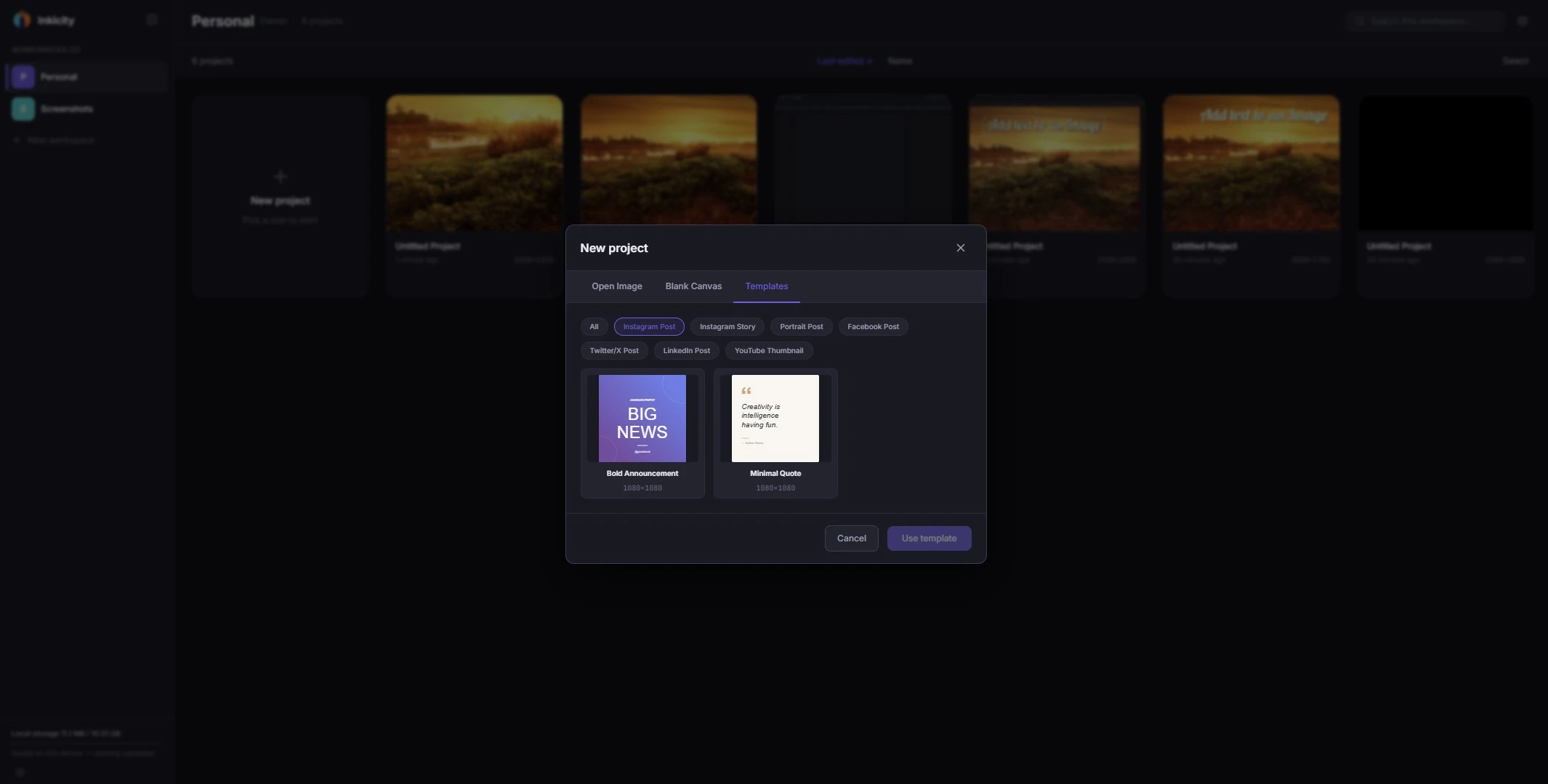
Sizes to design for
Platform UIs change; treat these as practical design targets, not a promise that Meta will never rescale again.
| Placement | Aspect ratio | Common design size | Notes |
|---|---|---|---|
| Feed post (square) | 1:1 | 1080 × 1080 | Safe default for many posts |
| Feed post (portrait) | 4:5 | 1080 × 1350 | Tall feed posts; often more screen space |
| Feed post (landscape) | 1.91:1 | 1080 × 566 | Wider shots; easy to look small in feed |
| Stories / Reels cover frame | 9:16 | 1080 × 1920 | Keep critical content inside safe margins |
If you only remember two numbers: 1080 × 1350 for tall feed posts and 1080 × 1920 for Stories.
Safe margins for Stories
Stories chrome (profile, stickers, reply bar) covers the edges. Keep faces, logos, and key words away from:
- The top ~14% (username and close controls)
- The bottom ~20% (reply and navigation)
Design full-bleed backgrounds to the edge; keep meaning inward.
Workflow: resize without uploading
- Pick the placement: feed post or story.
- Open the matching tool: Resize for Instagram or Instagram story maker.
- Place your photo on the preset canvas; scale so the subject sits where you want after Instagram’s own UI.
- Optional: crop tighter, add text, or a light filter.
- Export JPEG or PNG for upload from your phone or desktop.
Editing runs locally in the browser, which helps when a draft isn’t ready to go anywhere near a public converter.
Common mistakes
- Using a landscape phone photo as a Story without a 9:16 canvas. Instagram crops the center and can miss the subject entirely.
- Putting the caption only on the image in tiny type. It becomes unreadable on a phone, so use fewer words on the canvas.
- Exporting a 4K PNG for a feed post. Heavy files just slow down uploads; 1080 wide is plenty for most posts.
- Ignoring 4:5. Square is fine, but 4:5 often makes better use of vertical space in the feed.
Format tip
For photos destined for Instagram, JPEG is the usual export. Use PNG when you need transparency in a sticker-style asset. See PNG vs JPEG vs WebP if you are also publishing the same asset to a website.
Ready to edit?
Jump into the browser editor. No account, no upload.