Resize images for WhatsApp, X (Twitter), and LinkedIn
Practical pixel sizes and aspect ratios for WhatsApp, X/Twitter, and LinkedIn, plus a private browser workflow to crop and export without uploading.
Social platforms keep changing UI chrome, but the underlying advice is stable: export at the right aspect ratio and enough pixels, then let the app compress. Soft crops and unexpected letterboxing almost always mean the source was the wrong shape.
This cheat sheet covers WhatsApp, X (Twitter), and LinkedIn. For Instagram feed and Stories, use the dedicated Instagram sizes guide. Resize and crop locally in Inkicity so the file never hits an upload converter first.
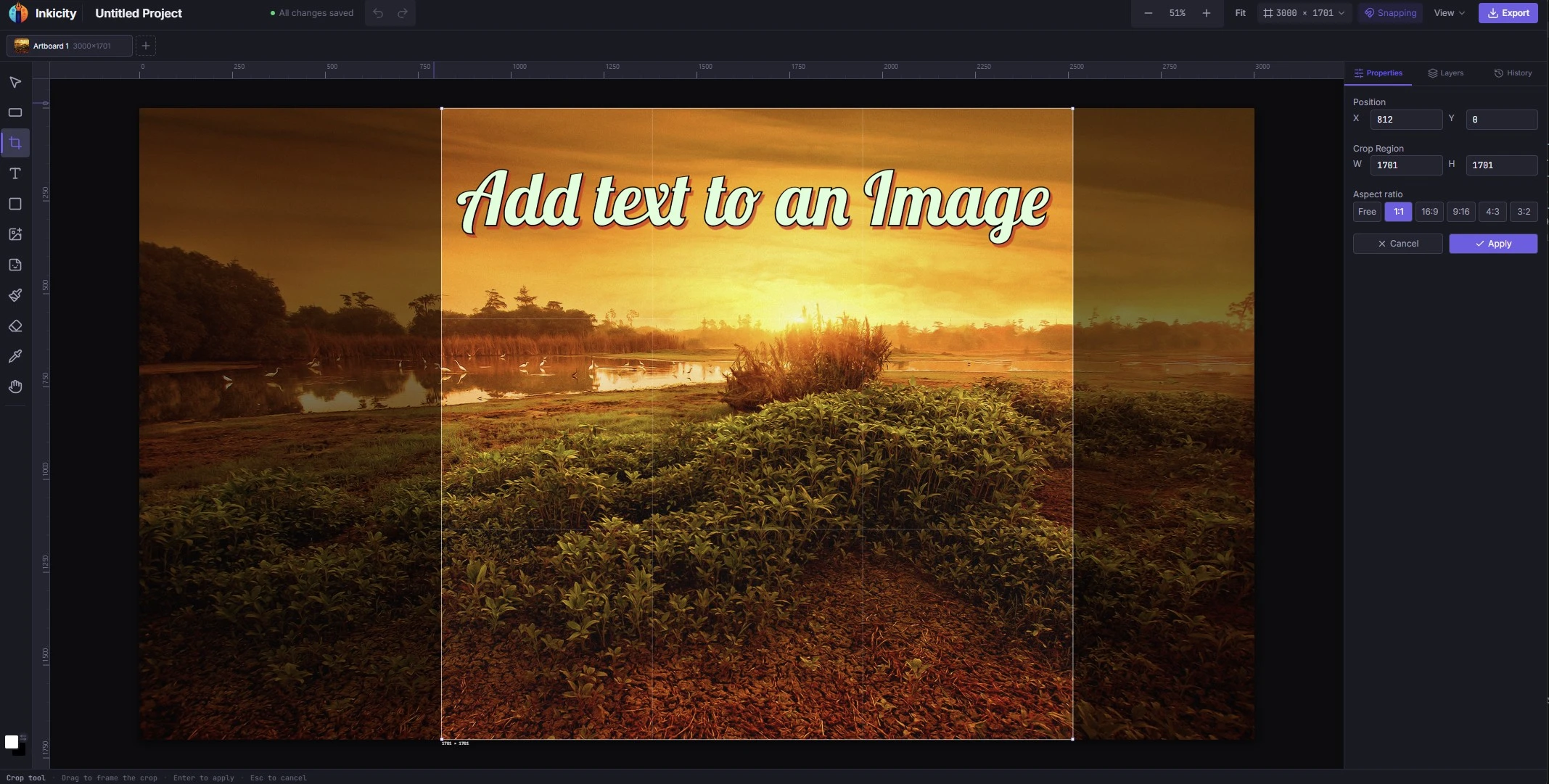
Quick size reference (2026)
Platforms tweak exact limits; treat these as safe working sizes, not eternal law. Prefer the aspect ratio over chasing a single magic pixel count.
| Destination | Typical aspect | Safe working size | Notes |
|---|---|---|---|
| WhatsApp image share | 1:1 or original | 1600×1600 (square) or keep ratio ≤ ~1600 on the long edge | Heavy compression; start sharp, avoid tiny exports |
| WhatsApp status | ~9:16 | 1080×1920 | Same vertical habit as Stories: keep content inside safe margins |
| X (Twitter) in-feed photo | ~16:9 or 1:1 | 1600×900 or 1200×1200 | Very tall images get cropped in timeline; prefer landscape or square |
| X header / banner | ~3:1 | 1500×500 | Leave important detail away from edges |
| LinkedIn feed image | ~1.91:1 or 1:1 | 1200×627 or 1200×1200 | Link-style 1200×627 still common; square works for native posts |
| LinkedIn personal cover | ~4:1 | 1584×396 | Keep face/logo away from the bottom overlay zone on profile |
Always check the live app if you’re prepping a campaign. These are practical defaults for everyday posts.
Workflow: resize without uploading
- Crop to the aspect. Open Crop an image online and cut to 1:1, 16:9, 9:16, or your target ratio.
- Scale on a clean canvas. Place the cropped image and export at the working pixel size above, or larger if you still have detail to spare.
- Pick a format. JPEG for photos, PNG for sharp UI or text on solid areas, WebP when you control the host. See PNG vs JPEG vs WebP.
- Post from the device. The download lands locally; upload to WhatsApp, X, or LinkedIn as you normally would.
Instagram-specific presets live on Resize for Instagram and Instagram story maker.
Platform tips that save re-exports
- WhatsApp re-encodes aggressively. Export a crisp JPEG; avoid stacking three rounds of “save for web” before you send.
- X crops aggressively in the timeline. Compose for the center; put captions in the tweet text when possible.
- LinkedIn rewards readable type. If you burn text into the image, keep it large and high-contrast, or add text in the editor and save the long copy for the post body.
Privacy note
Batch “social resizer” websites often require upload. For client drafts or personal photos, a local editor avoids parking those pixels on a converter. Details: Privacy Policy.
Related guides
Ready to edit?
Jump into the browser editor. No account, no upload.